
Video Accessibility Checklist For Schools + Universities
Learn how to make your educational video content accessible to all students and download our free video accessibility checklist to ensure ADA compliance.

One in four people in the U.S. live with a disability. In a lecture hall of 200 students, that’s 50 people who may not be able to access your video content the way you intended.
From closed captions and transcripts to audio descriptions and keyboard-accessible video players, accessible video means every student gets the same information from the same content, regardless of their abilities.
For schools and universities, getting video accessibility right is both a legal requirement and a responsibility to the students you serve. To help ensure your content is accessible, we’re sharing a video accessibility checklist along with tips for achieving video compliance for both past and future content.
What Is Video Accessibility?
Video accessibility is the process of ensuring video content is usable and comprehensible by all viewers, including those with disabilities, by adding closed captions, creating video transcripts, and offering an accessible video player.
For example, people who are deaf can follow along with a video through accurate captions, a student with low vision can rely on audio descriptions, and a non-native English speaker can download a full transcript in their preferred language to review at their own pace.
Why Does Video Accessibility Matter In Education?
Video accessibility matters in education today because video is one of the primary ways students learn. Lecture recordings, instructional content, and virtual office hours all live on screen. If that content isn’t accessible, this actively limits students’ ability to participate and succeed.
The stakes are higher than most educators realize. Students with hearing loss, visual impairments, processing disorders, or learning differences rely on accessible video to keep pace with their peers.
“When students have access to a format that matches their skills and sensibilities, retention and course completion increase,” says Lidija Elezovic, School Counselor and Professor of Psychology at Education World Wide.
“Accessible video can make quite the difference because it allows students to consume the same material by reading, hearing, and seeing content. Captions and transcripts help students review what they didn’t understand.”
Accessibility isn’t just a teaching best practice. It also protects your institution legally and sets a standard that benefits everyone. It's an important part of accessibility for higher education, as well as lower-level schools.
Legal Requirements For Video Accessibility
Educational institutions in the U.S. operate under several overlapping laws that require accessible digital content. Not knowing the rules isn’t a legal defense. The consequences of non-compliance can include federal complaints, loss of funding, and costly litigation.
Here are the legal requirements you need to know:
- Americans with Disabilities Act (ADA): Requires equal access to programs and services for people with disabilities. Courts have increasingly interpreted this to include digital content, including video.
- Section 508 of the Rehabilitation Act: Federal agencies and federally funded institutions must ensure their electronic and information technology (EIT) is accessible to people with disabilities.
- WCAG 2.1 Guidelines (AA Standard): While not a law itself, the Web Content Accessibility Guidelines are widely referenced as the technical benchmark for accessibility compliance in higher education.
- IDEA (Individuals with Disabilities Education Act): K-12 schools have additional obligations to provide accessible content to students with IEPs and 504 plans.
- Section 504 of the Rehabilitation Act (1973): Prohibits discrimination against people with disabilities in programs that receive federal funding, which includes most K-12 schools and public universities. Section 504 Final Rule, added in May 2024, added enforceable standards that ensure accessible web content and mobile apps.
Those outside of the education sector must also comply with ADA requirements. The DOJ has formally stated that the ADA applies to all web content, which includes video, for both state and local government (under Title II) and businesses open to the public (Title III).
Essentially, the ADA requires that you provide “full and equal enjoyment” of your goods, services, facilities, and privileges. This means that inaccessible video, such as lack of captions and mouse-only navigation, is a clear barrier to that. Businesses may have some flexibility in how they comply with ADA requirements compared with schools, but they still must ensure that their website content is accessible to people with disabilities. The DOJ recommends following WCAG and Section 508 for meeting the obligation.
Video Accessibility Checklist: Download Now
Whether you’re just getting started or auditing your existing content library, these steps (and the downloadable checklist below) give you a practical framework for making your visual information accessible.
1. Add Closed Captions To Every Video
Closed captions are synchronized text of everything spoken in a video. A complete, compliant caption includes more than just dialogue. Speaker labels, sound effects, and precise timing all need to be accounted for.
It’s also worth noting how captions differ from subtitles. Subtitles are designed for translating the language and assume the viewer can hear, while closed captions are for viewers who can’t, which is why they must include non-speech elements. Unlike open captions, closed captions can be toggled on or off by the viewer.
For deaf and hard-of-hearing students, captions are non-negotiable. But they also benefit second-language learners, students in loud environments, and anyone who processes information better through reading.
When adding captions, accuracy matters most. Relying solely on the auto-generated captions created by platforms like YouTube or Zoom is one of the biggest mistakes educators can make, says Joel Butterly, CEO of InGenius Prep.
“Algorithmic transcription regularly hallucinates esoteric technical terms to such an extent that technical, scientific, or legal lectures are rendered unusable to hearing-impaired students,” he explains.
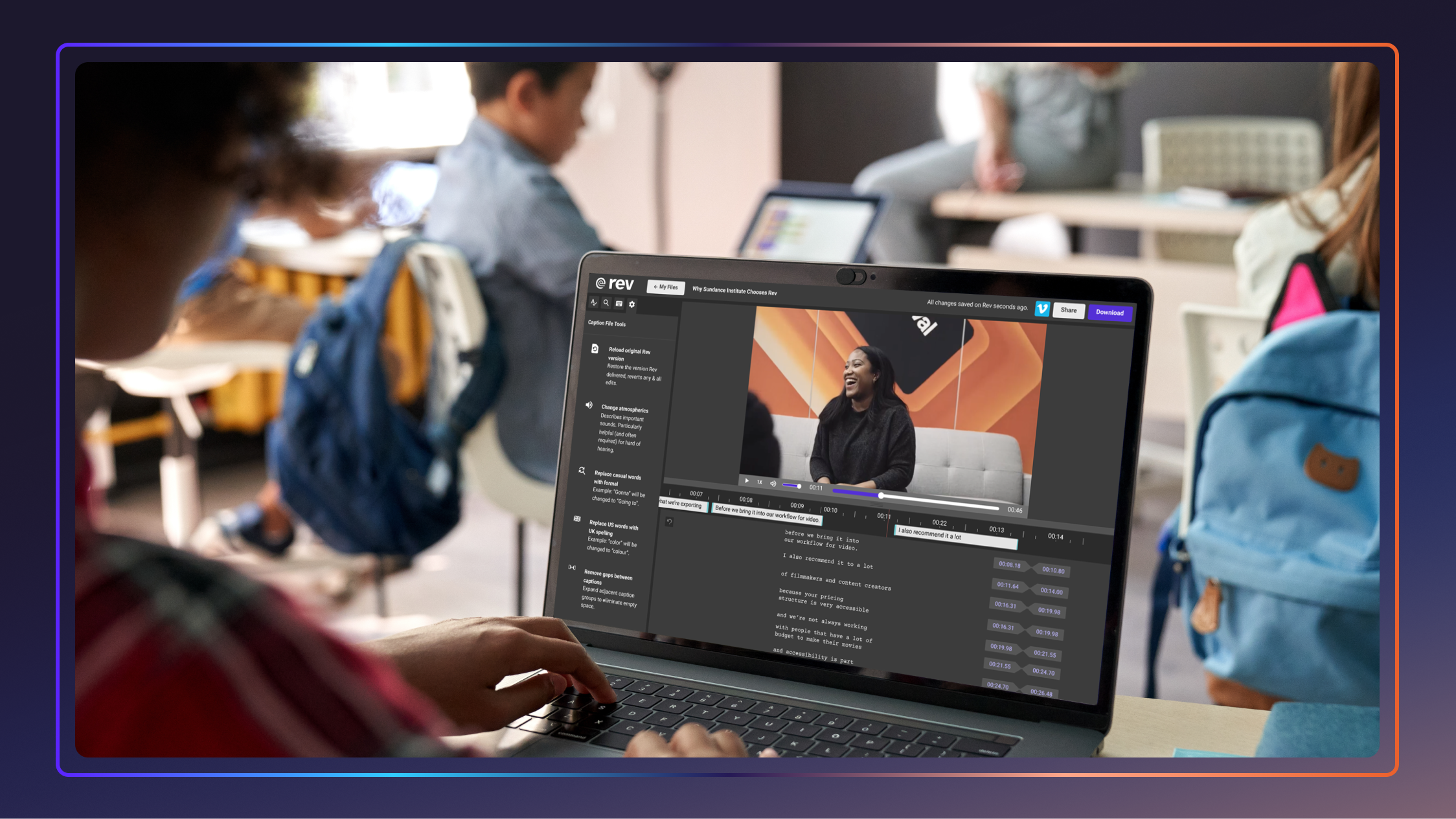
If you use these platforms, it’s essential to review and edit the captions they create before publishing. You can also use a closed captioning tool like Rev for 99%+ accuracy, guaranteed.
2. Provide Downloadable Transcripts
A transcript is a full text version of your video’s audio content, available as a downloadable document. Unlike captions, transcripts can be accessed independently of the video, making them searchable, printable, and easier to reference during study sessions.
Transcripts also support students who use screen readers or who prefer to read rather than watch. For lecture-heavy content, high-quality transcripts can double as study guides, making them a win for accessibility and learning outcomes alike. Use an AI transcription tool like Rev to make your transcripts interactive, giving students the ability to search within the transcript or collaborate with their peers.
3. Describe Visual Content With Audio Descriptions
Audio descriptions are narrated explanations of visual content that appears in a video that isn’t captured in the main audio. For example, charts, diagrams, demonstrations, or on-screen text. It also includes descriptions of the environment, gestures, and other visual cues. Audio descriptions are essential for students who are blind or have low vision, but they also benefit students watching on low-quality screens or in situations where visuals aren’t clear.
Adding audio descriptions typically requires a second pass on your video during post-production, but for content-heavy educational videos, the investment is worth it. You can use a free tool like YouDescribe to describe YouTube videos or an audio description software like 3Play.
4. Make Sure Your Video Player Is Keyboard-Navigable
Your video player itself also needs to be accessible. Students who use keyboard navigation instead of a mouse need to be able to play, pause, skip, and adjust volume without a trackpad or cursor.
To ensure you meet accessibility requirements, check that your video player is fully operable via keyboard commands and compatible with screen readers. Platforms like YouTube and Vimeo have made significant progress here, but if you’re using a custom LMS video player, verify compliance before rolling it out.
5. Check Color Contrast Of Visual Elements
If your videos include text overlays, slides, or graphic elements, those visuals need sufficient color contrast to be readable by viewers with low vision or color blindness. The content accessibility guidelines (WCAG 2.1 AA) require a contrast ratio of at least 4.5:1 for normal text.
Another best practice is to avoid using color alone to convey meaning. For example, don’t rely solely on green vs. red to indicate correct vs. incorrect answers. A quick pass through a contrast-checking tool before publishing can catch issues before publishing.
6. Make Supporting Materials Accessible
Think of video accessibility as one piece of a larger accessible content ecosystem. If your video comes with supplementary documents like slide decks, worksheets, or reading lists, those files need to be accessible, too. PDFs should be tagged and structured for screen readers, while PowerPoint files should use proper heading hierarchies.
Additionally, all images need alt text. Missing or incorrect image alt text was one of the most common accessibility issues cited in ADA lawsuits filed in 2025, which goes to show how frequently these are overlooked.
Implementing Accessibility At Scale
For a single instructor uploading one video a week, accessibility feels manageable. But when an entire university with hundreds of faculty members publishes thousands of hours of content each week, video accessibility requires a thorough system.
Start by establishing institution-wide standards that are easy to follow. Create a style guide for video accessibility that covers caption requirements, transcript formats, and player specifications, and make it available to every staff member on campus.
The easier you make compliance, the more likely it is that faculty will adopt it without pushback. Templates, pre-approved tools, and brief training sessions can also go a long way toward reducing friction.
Workflow integration and automation are the other key pieces. Accessibility is easier to address and maintain when it’s built into every step of the content production process. That means captioning happens during post-production, transcripts are generated before a video goes live, and audio descriptions are reviewed as part of the final checklist.
For larger institutions, designating an accessibility coordinator or working with an instructional design team to enforce these standards ensures consistency across departments.
Finally, review your existing content library. Legacy videos that predate your accessibility policy are still your legal responsibility to update. Audit your backlog, prioritize the most-accessed content first, and create a remediation timeline.
It won’t happen overnight, but a phased approach is far better than doing nothing. Non-compliant websites can cost you a civil penalty of up to $75,000 for your first violation and up to $150,000 for every additional violation.
Tools To Improve Content + Video Accessibility
The right tools make accessibility faster and more consistent. Here are a few video accessibility tools worth using to improve compliance and student experience:
- Rev: Offers both AI-powered and human-verified captioning and transcription, making it easy to create accessible videos at scale without sacrificing accuracy.
- YouTube Studio: Provides auto-generated captions that can be edited directly in the platform, offering a solid starting point for faculty uploading content to YouTube.
- WAVE (Web Accessibility Evaluation Tool): Helps evaluate the accessibility of your video pages and web content against WCAG guidelines.
- Kaltura: An LMS-integrated video platform with built-in captioning, interactive engagement tools, and accessibility controls.
- Panopto: A lecture capture and video management platform with automatic captioning built specifically for academic environments.
- Blackboard/Canvas Accessibility Checkers: Most major LMS platforms now include built-in accessibility checkers, which should be used before every video is published.
Start Building A More Accessible Campus Today
Video accessibility is an ongoing commitment to making sure every student can fully participate in their education. With the right checklist, tools, and workflow in place, Universities can meet accessibility requirements and provide a better learning experience for all students.
Download the Video Accessibility Checklist to give your team a clear starting point, and take the first step toward a more inclusive campus.